• Hi and welcome to the Studio One User Forum!

    Please note that this is an independent, user-driven forum and is not endorsed by, affiliated with, or maintained by PreSonus. Learn more in the Welcome thread!

Fender Studio Pro 8.0.1 - Discussion Thread

Long shot - Can you try the same thing you did last time turning off HDR and DPI scaling off?


I have DPI scaling off, actually it works fine with DPI scaling on (although it looks like crap), wasn't aware of the facility until now.

If I set DPI to "ON" in the VSTi GUI then I can confirm excess space either side in Battery's (latest version) GUI.
The HDR setting either off or on is not affecting the outcome. It would appear DPI setting in the VSTi Gui is tho'.

Hope that helps.

You really should have pulled this out into it's own thread, as requested ?

Regards
 
If I set DPI to "ON" in the VSTi GUI then I can confirm excess space either side in Battery's (latest version) GUI.
The HDR setting either off or on is not affecting the outcome. It would appear DPI setting in the VSTi Gui is tho'.

Hope that helps.

You really should have pulled this out into it's own thread, as requested ?

Regards

Are you talking about DPI scaling for the plugin as on or high DPI mode for Studio one as on? Let me know what they are both set at.

I repro for Studio One High DPI to on and 150%, and plugin DPI scaling to off.

"You really should have pulled this out into it's own thread, as requested ?" - absolutely my bad, I wasn't expecting the discussion to continue.
Happy to moderator to tear this out of the thread and throw it into a new one.
 
Are you talking about DPI scaling for the plugin as on or high DPI mode for Studio one as on? Let me know what they are both set at.

I repro for Studio One High DPI to on and 150%, and plugin DPI scaling to off.

"You really should have pulled this out into it's own thread, as requested ?" - absolutely my bad, I wasn't expecting the discussion to continue.
Happy to moderator to tear this out of the thread and throw it into a new one.

View attachment 3160
Setting as your attached image you inc.

I have confirmed on my computer that the settings can cause issue, it would be useful if you contact support to inform them, if you have a problem.
Hope you get it sorted to your satisfaction.

Kindest regards
 
After waiting until I needed something from FP8 that I couldn't get from SO7, I came up with a need today. I've heard some very good things about the audio to note conversion, and I need exactly that. We'll see later how it works out.

My initial impression of the interface is not a great deal has changed. There is now nothing delimiting the title bar from the menu bar from the toolbar below them, neither by line nor color. That toolbar used to have these buttons on the left side:
1771622836303.png

Looking at the UI overall, the small changes in color and decorations are negligible. The effect seems to me to be a softening and less clutter. And a bit easier on the eye.

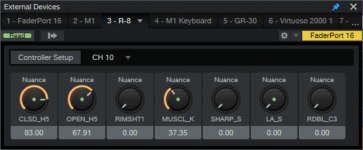
There is one change that is a small problem for me - the blank space above the macro controls in the External Devices window. I had these controls set up in SO7 for a Roland R-8 MkII:
1771624066942-png.3169


Here's what it looks like in FP8:
1771624224509.png


With the window enlarged to see the numbers:
1771624350459.png


That's quite a bit of waisted space. Now back to this audio to note conversion that I've heard so much about. - s
 

Attachments

  • 1771624066942.png
    1771624066942.png
    194,8 KB · Views: 457
So far FP8 is turning out to be quite familiar, and the changes that I see are easy to live with. As someone else pointed out, it's everything you had in S1P plus more.

I wanted to report back on a difficult test of the new Extract Notes function. It's an old recording of a crunchy electric rhythm guitar. This pic shows the audio at the top, followed by the extracted notes. The third track is he MIDI notes played by the organ as a reference. The Melodyne plugin is at the bottom.
ExtractNotesTest.jpg


Honestly, I did not expect it to do as well as it did, given the heavy distortion on the track. Compared to the Melodyne result, my initial impression is this: Where the Extract to Note function seemed to not quite catch some spots, the Melodyne result was getting a little too much. I have no idea if it's possible, but can some sort of sensitivity control be made for the Extract Notes function? - s
 
I agree Extract Notes function works quite well. I tried one real piano recording and it did quite good job. Tried also Extract Drums which did not result a usable outcome but of course it depends a lot on the quality of the recording.
 
So far FP8 is turning out to be quite familiar, and the changes that I see are easy to live with. As someone else pointed out, it's everything you had in S1P plus more.

I wanted to report back on a difficult test of the new Extract Notes function. It's an old recording of a crunchy electric rhythm guitar. This pic shows the audio at the top, followed by the extracted notes. The third track is he MIDI notes played by the organ as a reference. The Melodyne plugin is at the bottom.
View attachment 3184

Honestly, I did not expect it to do as well as it did, given the heavy distortion on the track. Compared to the Melodyne result, my initial impression is this: Where the Extract to Note function seemed to not quite catch some spots, the Melodyne result was getting a little too much. I have no idea if it's possible, but can some sort of sensitivity control be made for the Extract Notes function? - s
There's a free plugin called NeuralNote that does note extraction in a similar manner and it has sensitivity controls, so I don't think it would be an unreasonable ask.
 
So far FP8 is turning out to be quite familiar, and the changes that I see are easy to live with. As someone else pointed out, it's everything you had in S1P plus more.

I wanted to report back on a difficult test of the new Extract Notes function. It's an old recording of a crunchy electric rhythm guitar. This pic shows the audio at the top, followed by the extracted notes. The third track is he MIDI notes played by the organ as a reference. The Melodyne plugin is at the bottom.
View attachment 3184

Honestly, I did not expect it to do as well as it did, given the heavy distortion on the track. Compared to the Melodyne result, my initial impression is this: Where the Extract to Note function seemed to not quite catch some spots, the Melodyne result was getting a little too much. I have no idea if it's possible, but can some sort of sensitivity control be made for the Extract Notes function? - s
I haven't tried this function, but just wondering aloud ... what if the highes were EQ'd out - like using a tuner?
 
I haven't tried this function, but just wondering aloud ... what if the highes were EQ'd out - like using a tuner?
Ah, yes. Giving it a better look at the fundamentals, I suppose. That makes sense.

The problem I'm having is I recorded it decades ago, and I don't remember how to play it. I know some parts and others not so much. I also have a couple of MIDI organ tracks and an audio bass guitar track that can help flesh it out.

At some point, I'm going to have to go through the results in detail. I will definitely try out both suggestions. Thank you.
 
I have a problem: when I open any plugin window through the mixer or inspector, there’s about a half-second delay. But when I add a plugin - either through the channel overview or by clicking the track number - it opens instantly, as it should. Where should I look, or is this a bug? And has anyone else experienced this?
 
Hi, I don't know if this was mentioned or not yet, but there is a negative change between SO7 and SP8, and that is this:

In Windows 11, if I hold alt+click and drag at the end of an event to time-stretch it, now when I click "E" to zoom in, it highlights the EDIT drop down menu. It never did that in SO7.

Basically, any time ALT is pressed, it accesses the FILE EDIT menu drop down when certain keys are pressed afterward. "E" is one of them. It stops my next action from occurring. It's technically not a bug I guess, but it's certainly an unwanted behavior as it never happened in Studio One.
 
In Windows 11, if I hold alt+click and drag at the end of an event to time-stretch it, now when I click "E" to zoom in, it highlights the EDIT drop down menu. It never did that in SO7.

Are you still holding ALT and then pressing "E" - all at the same time?

That key combo 100% should open "Edit" (by Windows menu standards).

Suggest you select a better Zoom key. Or consider a more efficient edit sequence - like CTRL+ALT (Mag Glass) and then timestretch.

There are many ways to make this better rather than fighting the standard menu system.

VP
 
Are you still holding ALT and then pressing "E" - all at the same time?

That key combo 100% should open "Edit" (by Windows menu standards).

Suggest you select a better Zoom key. Or consider a more efficient edit sequence - like CTRL+ALT (Mag Glass) and then timestretch.

There are many ways to make this better rather than fighting the standard menu system.

VP
These are the default controls. W & E zoom out and in respectively. Holding Alt then clicking and dragging at the end of an event is the default way to time stretch.
Might I remind, this doesn't happen in Studio One.
In SP8, even if I just press Alt then E, it still does it.
 
These are the default controls. W & E zoom out and in respectively. Holding Alt then clicking and dragging at the end of an event is the default way to time stretch.
Might I remind, this doesn't happen in Studio One.
In SP8, even if I just press Alt then E, it still does it.

I am very aware of the defaults. I use ALT+Click to timestretch daily.

That said - I just tested this in S1 v7.2.3 - pressing Alt and THEN pressing E - most certainly selects Edit on the main menu system.

And then I tested this exact move in v8.0.1 - and it is identical.

So - not exactly sure what you are doing that I am not - and do not know what the issue is TBH.

VP
 
Testing this further, here's what I found:
In Studio One 4.6.2, 6.6.4 and 7.2.3 (what I currently have installed on this machine) pressing or holding the Alt key does not seem to influence the FILE EDIT menu's. I can hold it and combine it with other keys or actions and it behaves as I've always expected.

In Studio Pro 8.0.1, if I press the Alt key, I will notice the "FILE" menu highlight at the top left of the program. Pressing Alt again un-highlights the FILE menu, then pressing Alt one more time seems to do nothing. But pressing it a fourth time highlights the FILE menu again. It seems to highlight the FILE menu every fourth press of Alt, but definitely the first time if it's pressed after some actions.
This is new to me, as it never happened in any previous version of Studio One.

I also just tested this Alt functionality in an unrelated program (Guitar Pro 8) and pressing Alt or holding Alt seems to highlight the FILE EDIT menu's. So Vocalpoint, you're right in what you're saying. But regarding other versions of Studio One, this doesn't happen for me. Not for the last 15 years of using this software.

Can anyone else confirm that this happen to them in SP8?
**Then can you confirm if it happens to you in any other version of Studio One?**

If it's just happening to me only in my previous version of Studio One, then I'm totally unsure why.
 
Last edited:
In Studio Pro 8.0.1, if I press the Alt key, I will notice the "FILE" menu highlight at the top left of the program. Pressing Alt again un-highlights the FILE menu, then pressing Alt one more time seems to do nothing. But pressing it a third time highlights the FILE menu again. It seems to highlight the FILE menu every three presses of Alt, but definitely the first time if it's pressed after some actions.

Here - just seconds ago:

v8.0.1: If I press the Alt key, the "FILE" menu highlights at the top left of the program. Pressing Alt again un-highlights the FILE menu, then pressing Alt highlights the File menu. Pressing ALT repeatedly 20 more times - highlights (and unhighlights) the File menu - forever.

v7.2.3: If I press the Alt key, the "FILE" menu highlights at the top left of the program. Pressing Alt again un-highlights the FILE menu, then pressing Alt highlights the File menu. Pressing ALT repeatedly 20 more times - highlights (and unhighlights) the File menu - forever.

Both programs are identical in this key sequence - regardless of how many times I press the ALT key.

I could install v6.6.4 too but I would expect the same result.

Would help if you gave a breakdown of your OS, your keyboard, hardware, any fancy software that might be influencing keypresses and so on...

VP
 
What we really need to see is this screen:

1772050091714.png


And your (doubled screen above)

1772050124671.png


All values are identical in v7.23 and v8.01 over here.

With "D" (direct monitoring) selected in the Mixer - my guitars track with 0ms latency.

VP
 
This is not helping

1772051256040.png


Note that my Device Buffer and Process Buffer are both 128.

For you - device buffer looks fine but cranking that Process Buffer to 1024 is going to have impacts...as you can see.

VP
 
yeah as I posted before, disabling the Direct Monitoring (the Green Z thing from the previous versions, so, disabling Dropout protection) doesn't do anything on my install of v8 - it's still causing the same latency hit regardless of what I put there:
View attachment 3195
the settings I shared previously (dropout protection set to High etc) is what I've been using for years on v7 and can do essentially latency-free monitoring when tracking with no issues.

Fair enough. However - there is a large difference between "Green" Z and Blue "Z" (using Studio One parlance)

How do I know the difference between hardware (DSP) monitoring and software (native) monitoring?

In the Studio One mixer, a small “Z” at the bottom of the output channel fader indicates the availability and type of monitoring. Blue stands for low-latency hardware monitoring, Green for low-latency software monitoring. The mode is set in the Audio>Processing preferences panel (“Use native low latency monitoring instead of onboard DSP”). Low-latency monitoring still needs to be activated by clicking the “Z” button on the respective output channel(s).


Your audio interface is key to this - my RME UCX-II enables Blue "Z" automatically and this that is why I have 0ms latency for guitars.

If you do not see Blue Z (or a "Blue D" within Studio Pro) - then your interface does not support low-latency hardware monitoring.

Yours seems to be green in your screencaps so this could be a reason you are seeing what you are seeing. Can't imagine that Fender missed this one during the development as they are most likely well acquainted with UA and it's hardware.

Also thought I read somewhere that enabled Efficiency Cores on a Mac impacted this process for some reason. I am a Windows guy so I do not have this - but I noticed that Efficiency (much slower cores) ARE enabled in your screen caps.

VP
 
Back
Top