• Hi and welcome to the Studio One User Forum!

    Please note that this is an independent, user-driven forum and is not endorsed by, affiliated with, or maintained by PreSonus. Learn more in the Welcome thread!

The Ultimate Macro Sharing Thread

Lukas

Administrator
Staff member
I thought it would be nice if everyone who uses macros a lot shared one or two of their favourites. It might be inspiring to see how macros can improve/speed up/simplify some tasks. These can be your own macros or macros you have downloaded and find yourself using regularly.

Hopefully this will also help to encourage people who have always avoided macros because they think it's too complicated and only for programming experts. It's not - most of the time using macros is really easy. For any doubters, here's a link to my macro crash course video and a playlist of macro tutorials by Gregor, Joe and others.

Rules:

- Macro title
- Short description (keep it simple so that everyone immediately understands what the macro is good for)
- Optional image or youtube video link
- For more complex macros: Link to the macro on PreSonus Exchange or attach the .studoonemacro (or .macropage file) to the post

- No discussion posts, no questions - just 1 or 2 macros per post, to keep the thread clear and valuable. If you want to start a discussion about a macro that has been posted here (and for any "offtopic" post), just start a new thread.
 
Last edited:
Skip back 5 seconds and play

I'll start with an unspectacular macro that I've been using all the time recently. It requires Navigation Essentials for the "Rewind Second" command.

When I'm editing and finetuning certain passages (transitions, drum fills, etc.) and want to hear the passages in context, I like to use this macro via a keyboard command (or via a button on my stream deck) to skip back 5 seconds and then start playback. The play start cursor can be very useful for this too, but if I'm always switching between different parts, I like the macro better.

rewind-and-play.png


Instead of "Rewind Second", you can also use "Rewind Bar" (this is built into Studio One, no add-on required) and set 2 bars, for example.
 
Hi, I created some macros with functions that were very useful to me in my previous DAW.
I upload the images because I don't have an exchange.
In Studio One if I need to mute or delete part of an audio clip I have to
1) select the cut tool
2)cut the part twice
3) change the tool and choose the mute tool
4) silence the cut part
With these macros I can
1)select the part of the audio clip
2) push the button
The selected part of the audio will automatically be cut and silenced or deleted
I hope it can help someone
Ops....italian language
 

Attachments

  • Smart Erase.PNG
    Smart Erase.PNG
    11,1 KB · Views: 48
  • Smart Mute.PNG
    Smart Mute.PNG
    11 KB · Views: 41
Hi, I created some macros with functions that were very useful to me in my previous DAW.
I upload the images because I don't have an exchange.
In Studio One if I need to mute or delete part of an audio clip I have to
1) select the cut tool
2)cut the part twice
3) change the tool and choose the mute tool
4) silence the cut part
With these macros I can
1)select the part of the audio clip
2) push the button
The selected part of the audio will automatically be cut and silenced or deleted
I hope it can help someone
Ops....italian language
I translated the commands in both of your macros to English so hopefully these translations are correct.
If not, please let me know.

Smart Erase
========
Arranger|Select Events in Section
Edit|Split Range
Toolbar|Tool 2
Edit|Cut
Toolbar|Toggle Range Tool in upper event area

Smart Mute
========
Arranger|Select Events in Section
Edit|Split Range
Toolbar|Tool 6
Event|Mute Events
Toolbar|Toggle Range Tool in upper event area

After using them I questioned whether macros were needed for these.

The standard "Studio One" key commands should be able to accomplish the tasks to erase or mute selected events.
1. Use Range Tool to select event.
2. Press [Delete] key to delete or [Shift] [M] to mute.

Studio One Keyboard Shortcuts
=====================
[Delete] = Edit|Delete
[Shift] M = Event|Toggle Mute (Toggle works well to Mute or Unmute)

Please let me know if those steps don't work for you or if I'm not understanding the need for macros to do this.
 
Here's a simple but I think powerful one if you tend to use the same plugin on all channels. I like to mix using the SSL Native Channel Strip in the 360 software because it limits options and makes me focus better on what is needed instead of what is possible.
What it does is select all channels and then insert a plugin of choice on all. If there already are plugins it will just put it last in the chain. It takes away the need to first select the first channel, then the last channel and then dragging in the plugin. It's just a one click operation and you're set.

Navigation/First Track
Navigation/Last Track Extend
Track/Add Insert to Selected Channels (double click in the arguments field to select the plugin of choice and the desired preset).
 
Loop, zoom and play the selection
This one I use much but if there is a more efficient way to do it, please tell me. Also it’s a translation, sorry for any mistake. Original french version below.

Edit|Autoscroll State ('0')
Transport|Loop the selection Activate ('1')
Transport|Commute the loop State ('1')
Zoom|Zoom on the loop State ('1')
Transport|Activate the play start marker State ('0')
Transport|Play from the start of the loop

[French]
Éditer|Autodéfilement State ('0')
Transport|Boucler la sélection Activate ('1')
Transport|Commuter la boucle State ('1')
Zoom|Zoom sur la boucle State ('1')
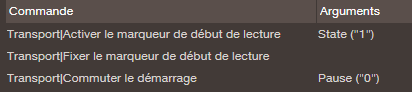
Transport|Activer le marqueur de début de lecture State ('0')
Transport|Lire depuis le début de boucle
 
Last edited:
Play from the last stop position
This is a behaviour I heard at first from Cubase old users complaining :) But as I thought it would be cool, I made a macro for it. How it works :
1) Press Alt+Space bar to play via the macro.
2) Press Space bar to play normally.
3) Now you decide : you wanna go back to first start position, you press Space bar. You wanna go on, you press Alt+Space bar.

(Translation, sorry for any mistake. PM me and I will edit. Original french version below.)

Transport|Activate the play start marker State ('1')
Transport|Set the play start marker
Transport|Start

1753984972516.png
 

Attachments

  • 1753958716455.png
    1753958716455.png
    6,9 KB · Views: 39
Last edited:
Play from before the zoomed loop
Ok now suppose you did the macro Loop, zoom and play the selection described above. You made some edits. You wanna go on, but start a little before, to listen how the edits sound in the part where they are. This macro could do it. Numbers of bars and autoscroll type are up to you.

Transport|Go to loop start
Transport|Commute loop State ('0')
Edit|Autoscroll center State ('1')
Transport|Go one bar backward Bars ('1')
Transport|Activate the play start marker State ('1')
Transport|Set the play start marker
Zoom|Zoom back
Zoom|Zoom back
Transport|Commute start Pause ('1')
Transport|Start

This « Zoom back » x2 is the less worse I could find… The best would be to be able to set up a specific value. Go there if you agree :


1753963643881.png
 
Mark some parts while playing the track
Ok, this one is a little tricky. Suppose you’re listening to your track, and you hear something you wanna deal later with. With this macro, you just have to select the place where it happened and then it’s marked. Meanwhile your track keeps on playing so you don’t loose the overall feeling of a continuous listening.
I had to use sideways, because from what I understand you can’t insert a marker elsewhere than where the cursor is. Anyway, here it is (please note that it works with «Loop set to selection » option activated) :

How it works :
1) Select the part you want to go back later to
2) Press the macro shortcut

Transport|Activate the play start marker State ('1')
Transport|Set the play start marker
Transport|Commute start Pause ('')
Transport|Go to loop start
Marker|Insert a marker named Name ('E')
Transport|Go to loop end
Marker|Insert a marker named Name ('S')
Transport|Commute loop State('0')
Transport|Commute start Pause ('')
Transport|Start
Transport|Go back one bar Bars('1')


1754082086496.png
 
Last edited:
One set of macros that I use a ton - macros to add mono tracks for specific preamps.

First I made track templates for mono instances of my 16 most commonly used preamps with an instance of Console 1 on each, then I created a macro to insert any of them and fire a rename dialog box. I've also mapped them to keyboard shortcuts so I can fire them from the Stream Deck. Nothing groundbreaking here, but I use them every single day.
Screenshot 2025-08-03 074053.png


I also made a menu for them:

Screenshot 2025-08-03 073513.png


Dean
 
Two cool macros for resetting your whole console:

1- Reset to -Infinity: Resets all faders to -Infinity (i.e. all the way down), resets pans, changes pan mode to Dual and deactivates all inserts

- Console | Set volume to infinity for all channels
- Console | Set pan for all channels ("50")
- Console | Next panner stereo mode ("1")
- Devices | Activate all inserts ("1")

1754951145927.png


2- Reset to Unity gain: Resets all faders to Unity Gain (i.e. puts them on 0 dB of gain, the default state) resets pans and deactivates all inserts

- Console | Reset Volume for all channels
- Console | Set pan for all channels ("50")
- Console | Next panner stereo mode ("1")
- Devices | Activate all inserts ("1")

1754951213771.png


Some notes:
* The pan reset only sets the channel's pan to whatever value you enter (going from 0 = Left to 100 = Right, 50 being Center) but only its central value. Meaning, if you closed the width it won't open it up again. If you want a full reset you need to select all channels and control+double click on the panner, as there's no command for a true pan reset, as far as I know.
* The last two steps are optional. I prefer Dual pan mode, but if you like some other mode you can set its value to its corresponding order on the menu that pops up when you right click on the panner: 0, 1 or 2.
* There's no way to access the Remove All Inserts command from the command list, so Activate All Inserts is the next best thing.
* You can throw a Collapse All Macro Views at the end if you want.
 

Attachments

Last edited:
As strange as it sounds, there is no command allowing to «go to marker Start ». Here is how I do it (assuming Start is your first marker) :

1757613833372.png
 
Back
Top