• Hi and welcome to the Studio One User Forum!

    Please note that this is an independent, user-driven forum and is not endorsed by, affiliated with, or maintained by PreSonus. Learn more in the Welcome thread!

Solved Roland A 49 not recognized

John Vere

Active member
Today I wanted to record a midi drum part in Studio one. I guess this might be the first time I required my Keyboard controller. No Keyboard?
I checked in the set up and under External devices There's no sign of my Roland A 49.
It is totally working in 3 other Daws and the driver is properly installed. The A 49 is always connected.

In the Add device list I do not even see Roland as a manufacture choice??? What? I can't be the only person who uses a Roland keyboard!
My only option is to add a generic keyboard. That doesn't work either it simply say's " Not Connected"??
I followed the message to unplug it and re connect, nothing. I was forced to carry on in another Daw.

This shouldn't be complicated. All the other Daw's automatically listed it as the A49 without my intervention.
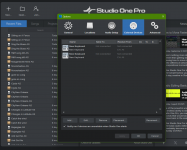
 

Attachments

  • Screenshot (182).png
    Screenshot (182).png
    182,8 KB · Views: 28
  • Screenshot (183).png
    Screenshot (183).png
    44,8 KB · Views: 14
I'd recommend downloading and installing the Roland A-Series driver for Windows 11...
Roland A-Series Driver

Here's a couple videos that walk through setting it up in Studio One....

To view this content we will need your consent to set third party cookies.
For more detailed information, see our cookies page.

To view this content we will need your consent to set third party cookies.
For more detailed information, see our cookies page.
 
I use an A49 with Studio One.

From the video at 0:46 you are leaving Send To as None. What happens if you select the A-49 there too?
 
I got back to this issue yesterday. As said all other apps recognize the A49. Studio one showed it on the drop down list in set up but it just always showed as Not Connected.

So @Trucky had the correct answer in a roundabout way.
I simply uninstalled the driver in Windows App list and rebooted. Before I did this I checked in Device Manager and wrote down the driver version number.

There are two options listed on Roland website for installing the midi driver.

The first is download and install the driver, which is what I always do.

Second is they now supply the driver to Windows. You set the Keyboard up using the Function key/ Advanced/ and then make sure that the + key is illuminated. This allows class compliance mode.
You then unplug and re-connect the USB cable and Windows will download and install the driver.

Note: This driver was exactly the same driver version number that I had just removed. I noticed that Yamaha has a similar system for my DTX drums.

Now after choosing it in midi set up S1 connected and it is working fine. My Yamaha DTX is also working fine. My Motu M4 also works fine.

So not clear what was wrong with the original driver but once again it never hurts to try re installing drivers as part of any troubleshooting process.
 
@John Vere - Glad to hear that it's working for you now!
 
Back
Top