• Hi and welcome to the Studio One User Forum!

    Please note that this is an independent, user-driven forum and is not endorsed by, affiliated with, or maintained by PreSonus. Learn more in the Welcome thread!

So confused about routing one track to another

Huertaaj

Member
Hi all: I have watched many videos and read many instructions on routing tracks but none seem to work. Most don't make sense at all because of incomplete instructions or simply because I don't see on my screen what they say I should be seeing. I'm thinking that the videos that I can find on YouTube are pretty much for older versions of Studio One with an older interface. All I would like to do is to have Scaler 3 or another plugin that I just purchased called Spacewalk control another MIDI track in Studio One 7.2.3 Can someone please explain the simplest way to do this, or at least point me to a video that is up to date? I would appreciate it sooooo much!!!
Thanks
 
All I would like to do is to have Scaler 3 or another plugin that I just purchased called Spacewalk control another MIDI track in Studio One 7.2.3

See here:

To view this content we will need your consent to set third party cookies.
For more detailed information, see our cookies page.

At about the 13:50 mark - the presenter talks about using Scaler to "drive" a third party instrument. Like Spacewalk.

While he uses Scalar 2 for this demo - everything he is showing is applicable to Scaler 3.

Hope it helps.

VP
 
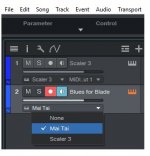
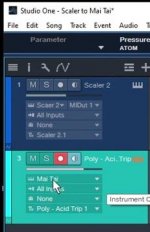
Hi Vocalpoint. Thanks for your answer and well, herein lies my problem. I had already watched that same video. See below a screenshot of the relevant information from the video you suggested and another screenshot from my Studio One screen. The options are different so I can't do what the person in the video describes. I see fewer options when I click on the down arrow in my track. The image on the left is from my screen. What am I missing?
 

Attachments

  • Scaler to MaiTai from my screen.jpg
    Scaler to MaiTai from my screen.jpg
    17,8 KB · Views: 16
  • Scaler to MaiTai from suggested video.jpg
    Scaler to MaiTai from suggested video.jpg
    18,9 KB · Views: 16
Dang! An obvious but not so obvious solution to see the information. :rolleyes::rolleyes::rolleyes: I'll try it now and see if I can get it to work!
 
OK, I got it working but was missing two things as follows...

1) You have to be able to see the "input" tab on the receiving (controlled track) in order to select it and designate Scaler as the controlling plugin. This is only possible if you expand the track height by pulling down the bottom of the track window, easy to miss.

2) You have to access the controlling track (in this case Scaler) from within the options in the top left of the window of the receiving track (MaiTai in this case). If you try to use the Scaler track itself (not the MaiTai track) to generate notes all you get is the Scaler instrument sound and it does not send the information to the MaiTai track.

Do I have this right? It seems easy but unless it's made clear in the tutorials it's easy to miss.

Thanks for your support! I very much appreciate it.
 
Do I have this right? It seems easy but unless it's made clear in the tutorials it's easy to miss.

Sounds like you have it. And yes - Presonus could do a much better job of indicating where a UI element needs to be widened, lengthened etc so the full picture is made available - especially for new users.

But to your question - it is basically Scaler (out) to MaiTai (in). Just make sure Scaler is the "Input" within the MaiTai track AND mute the Scaler track completely so it's internals are not heard.

Takes a bit of trial and error but you should be rocking in no time.

VP
 
Fabulous! I love this group!!!
 
I'll add a screenshot to make it easier for anyone reading this thread.

The Midi routing is straightforward. The Midi input of the instrument (Mai Tai) has to listen to the VST outputting Midi data (BlueArp or in your case Scaler 3). But you have to enable monitoring (loudspeaker icon) for Mai Tai to hear the audio if monitoring is not automatically enabled.

Since Scaler is also an instrument (generating also audio instead of only Midi) you need to mute the Scaler audio channel in the console. If you mute the Scaler track then Scaler wont output Midi data anymore.

Midi Routing.png
 
There are track height commands available to create shortcuts. Medium shows what you need and is mapped to '!' by default - quicker than dragging. There is also a drop-down selection for height just below the Arranger to the left
 
Back
Top